
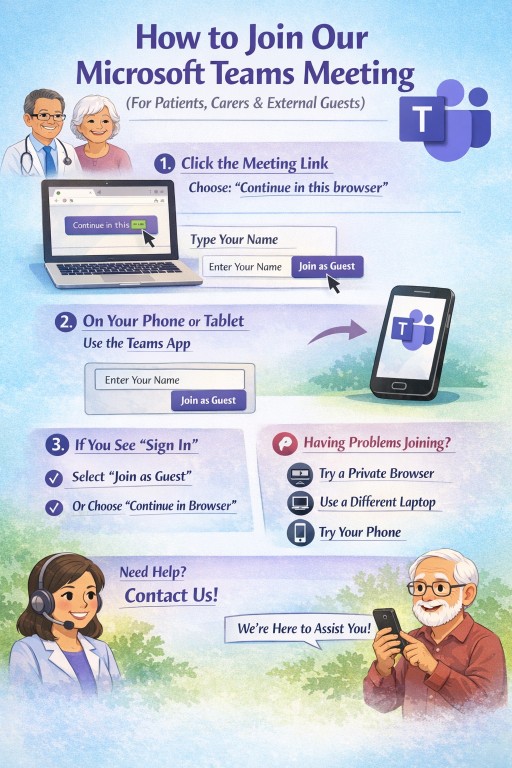
(For patients, carers and external guests)
You do not need a Microsoft account to join.
Most people can join easily using their internet browser.
✅ The Easiest Way to Join (Laptop or Desktop)
-
Click the meeting link we sent you.
-
When prompted, choose:
“Continue in this browser”
(You do NOT need to download Teams.) -
Type your name.
-
Click Join now.
-
If asked, allow access to your microphone and camera.
Please wait in the lobby until we admit you.
📱 Joining on a Phone or Tablet
-
Tap the meeting link.
-
If you already have the Microsoft Teams app, it will open automatically.
-
If not, you can download the free Teams app from your app store.
-
Enter your name and join.
Phones often work even if laptops have problems.
⚠️ If You Are Asked to Sign In
You do not need to sign into Microsoft.
If you see a sign-in screen:
-
Look for “Join as guest”
-
Or close the page and reopen the link
-
Or choose “Continue in this browser”
Avoid signing in with a work or NHS account unless you are sure it allows external meetings.
🔧 If It Doesn’t Work on Your Laptop
Try one of these:
-
Open the link in a Private / Incognito window
-
Try a different browser (Chrome or Edge usually work best)
-
Make sure you are not already signed into multiple Microsoft accounts
If you are using a work or NHS laptop, security settings may block external meetings. In that case:
👉 Try your personal laptop or your phone.
🎤 Audio & Camera Tips
-
If your microphone does not work, leave the meeting and rejoin.
-
If you prefer, you can turn your camera off.
-
You can also use the chat box to type questions.
📞 Still Having Trouble?
If you cannot join:
-
Try using your phone instead.
-
Or contact us before the meeting and we will help where we can.

Latest News posts
News archive